
 OpenPost
YouTube

Create a Google OAuth client and connect a YouTube channel for video uploads.
OpenPost connects a YouTube channel with Google OAuth and uploads one video per YouTube rendition. Google controls who can authorize your app and whether API uploads can be public.
Before you start
- Set
OPENPOST_APP_URLto your instance's public HTTPS origin. - Use a Google account that has a YouTube channel. Have access to a Google Cloud project where you can enable APIs and configure OAuth.
- Plan for Google's consent-screen verification and YouTube API audit if people outside your test group will use the app. Unverified API projects created after July 28, 2020 have uploads restricted to private viewing.
Set up Google Cloud
-
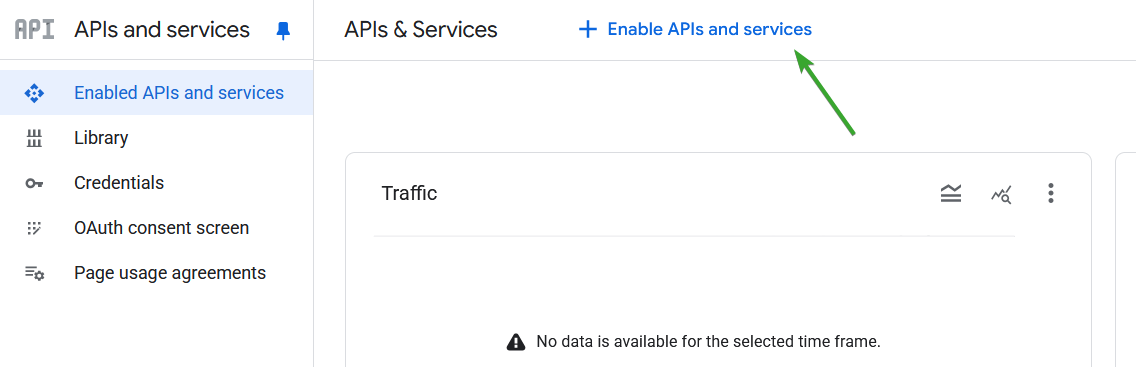
Create or select a project in Google Cloud Console, then enable YouTube Data API v3 in APIs & Services → Library. Enable YouTube Analytics API too if you will use Analytics.
-
In Google Auth Platform, configure the OAuth consent screen, audience, app details, and authorized domains. Add your own Google account as a test user while the app is in testing. In Data Access, add the scopes below; submit for verification when Google requires it.
-
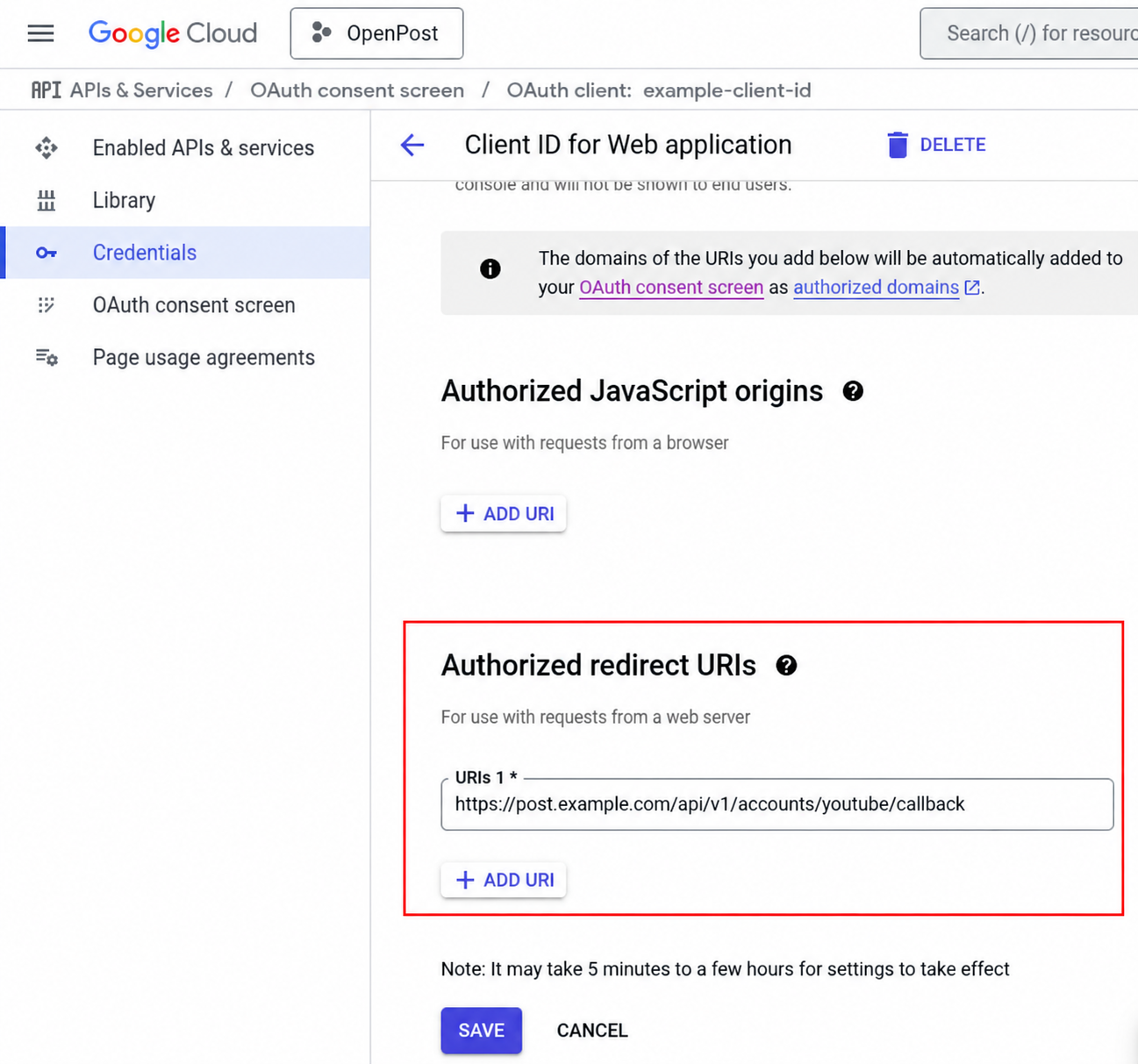
In Clients (or APIs & Services → Credentials), create an OAuth client ID of type Web application. Add this Authorized redirect URI:
https://post.example.com/api/v1/accounts/youtube/callback -
Save the client and copy its Client ID and Client Secret. Keep the secret in your instance's secret store.
OpenPost requests these scopes. Enter the full URLs in Google Auth Platform when configuring data access:
https://www.googleapis.com/auth/userinfo.profile
https://www.googleapis.com/auth/userinfo.email
https://www.googleapis.com/auth/youtube.readonly
https://www.googleapis.com/auth/yt-analytics.readonly
https://www.googleapis.com/auth/youtube.upload
https://www.googleapis.com/auth/youtube
The YouTube Analytics API must be enabled before OpenPost can read channel reports.
Google documents YouTube OAuth and the web-server OAuth client flow.
Save the app in OpenPost
Use this provider entry when saving your app credentials. Replace the example domain with your OpenPost address.
[
  {
    "provider": "youtube",
    "client_id": "your-google-oauth-client-id",
    "client_secret": "your-google-oauth-client-secret",
    "redirect_uri": "https://post.example.com/api/v1/accounts/youtube/callback"
  }
]
Connect and test
- In Settings → Workspace → Social accounts, select YouTube. Sign in with the Google account that owns the target channel, grant consent, and choose the channel returned by Google.
- Create a publication with one video and select the connected channel. Start with a private upload and confirm that OpenPost reports the result and the video appears in YouTube Studio.
- Set title, description, privacy, and other YouTube options on the rendition as needed. Test public visibility separately: Google can keep API uploads private even when OpenPost requests another privacy level.
OpenPost also requests YouTube read, upload, broader YouTube, profile, email, and Analytics read scopes. Optional Comments and replies and Analytics start disabled per channel and need those permissions before you enable them.
If it does not work
- Google blocks consent: Check the consent-screen audience, test-user list, requested scopes, and verification status.
- No channel appears: Confirm the signed-in Google identity has a channel available to the app and select the right account in Google's chooser.
- Upload fails or stays private: Confirm YouTube Data API v3 is enabled and read Google's error. A new unverified API project can only upload private videos until it passes the YouTube audit.
- Redirect mismatch: Compare the authorized redirect URI with the JSON and public
OPENPOST_APP_URLexactly. Reconnect after changing scopes.